





Listen to this post: How to Back Up Your Entire Digital Life the Easy Way
Picture this. You’ve got a mug of coffee near your laptop, you turn to grab your phone, and your elbow does the rest. Or you’re on a train and your phone slips from your pocket. Or you try to log into your main email and get locked out at the worst time.
In those moments, the problem isn’t just “files”. It’s your digital life: photos, notes, work docs, passwords, and the little settings that make your devices feel like yours.
The good news is you don’t need a complicated setup, or to become the family IT person. You can put a low-stress plan in place in about 30 minutes, then let it run on autopilot. The aim is simple: if a device breaks, gets stolen, or an account goes weird, you can get your stuff back quickly.
Start with a simple plan, the 3-2-1 rule made easy
A good backup plan is like having spare keys. You don’t think about them daily, but when you need them, you really need them.
The classic rule is called 3-2-1:
- 3 copies of your data (your original, plus two backups)
- 2 types of storage (for example, cloud plus an external drive)
- 1 copy offsite (somewhere not in your home, usually the cloud)
For personal use, you can keep it friendly and practical. One copy lives on the device you use every day. One copy sits on a drive you control. One copy sits online, so it survives theft, fire, or a dead laptop.
You might also see an upgraded version: 3-2-1-1-0. It adds two sensible ideas:
- 1 immutable copy (a copy that can’t be edited or wiped by ransomware)
- 0 errors, meaning you test it so you know it restores
If you want a clear explanation of why people are updating the rule, this guide to the 3-2-1-1-0 backup approach breaks it down without turning it into a horror story.
What counts as your ‘digital life’ (so you don’t miss anything)
Most backup failures start with good intentions and a bad assumption: “Everything important is on my laptop.” It usually isn’t.
Here’s a quick checklist to scan, not to memorise:
- Photos and videos (including shared albums)
- Documents (bills, letters, PDFs, scans)
- Work or school folders
- Notes and voice memos
- Contacts and calendars
- Messages (where your phone supports backup)
- App data (important logins, chats, game saves)
- Creative projects (design files, music, drafts)
- Your Downloads folder (often full of “temporary” important stuff)
- Device settings (Wi-Fi, accessibility settings, home screen layouts)
Also, don’t forget cloud-only items. Files in Google Drive, iCloud, or OneDrive can feel “safe” because they’re online, but they can still be deleted, overwritten, or locked behind an account problem. Sync is not the same as backup.
Pick your two storage types: cloud plus a drive (the easiest combo)
For most people, the easiest combo is one cloud service plus one external drive.
Cloud gives you that offsite safety. If your home is broken into, your cloud copy is still there. A local external drive gives you speed and control. Restoring 200 GB of photos from a drive feels like a short chore. Restoring it from the internet can feel like a long weekend.
A 1 TB to 2 TB drive covers a lot of households, especially if you mostly back up documents and photos. If you shoot loads of 4K video, you’ll fill space faster.
- External HDD: cheaper, slower, fine for weekly backups.
- External SSD: faster, tougher, costs more, nicer if you back up often.
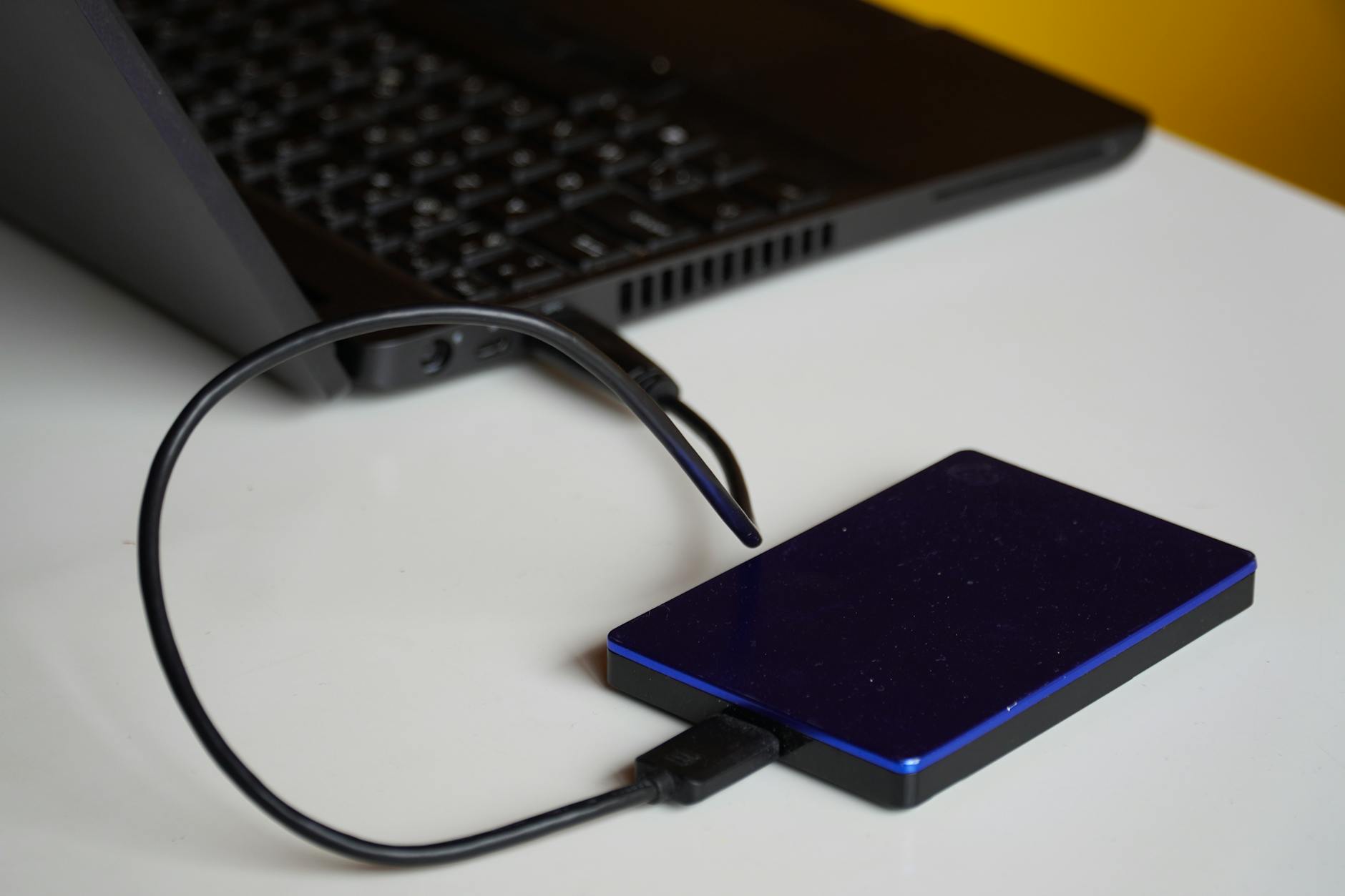
Photo by Budget Bizar
Set up automatic backups on your main devices in one afternoon
The secret isn’t finding the “perfect” tool. It’s building a setup that runs even when you’re tired, busy, or distracted. Manual backups fail because life gets in the way.
Aim for automatic, scheduled, incremental backups. Incremental means the system only copies changes since last time, so backups stay quick and you’re less likely to skip them.
A simple rhythm works well:
- Cloud: continuous or daily, set-and-forget
- External drive: weekly, or whenever you plug in to charge/work
Set it up once, then spend your effort on one habit: letting the drive connect often enough.
Windows and Mac: use the built-in tools before you download anything
Before you install new software, check what your computer already has. Built-in tools are usually good enough for home use, and they’re designed to work quietly in the background.
On Windows, look at:
- File History: good for personal files, lets you roll back to older versions.
- Backup and Restore: older, but still useful for certain system backups.
Your goal is simple: point Windows at your external drive and choose the folders that matter (Documents, Desktop, Pictures, plus any custom folders).
On Mac, use Time Machine. It’s one of the least stressful backup tools around. Plug in a drive, approve it, and it gets on with it.
Two small tips that prevent future confusion:
- Name the drive clearly, for example “Laptop Backup”. This matters when you have multiple drives or a new computer later.
- Plug it in at least once a week. If you use a laptop, it’s easy to leave the drive in a drawer. Pick a routine, like Sunday evening or after payday.
If you want a deeper explanation of why this simple approach works so well, this overview of the 3-2-1 backup rule in plain terms is a solid companion read.
Phone backups that actually work (Android and iPhone)
Phones are tiny memory boxes. They hold your messages, your photos, your app logins, your maps history, your entire social life. And they’re also the easiest device to lose.
A good phone backup has two layers:
- Device backup (settings, app data, messages where supported)
- Photo backup (camera roll, screenshots, videos)
For iPhone, start with iCloud Backup. It covers a lot of what makes your phone feel “set up”, and it makes switching to a new iPhone far less painful.
For Android, use Google’s backup (often managed through your Google account) and consider Google One if you need more storage. Your exact options vary by phone maker, but the idea stays the same: turn on automatic device backup, then turn on automatic photo upload.
One warning that saves heartbreak: don’t rely on “I’ll copy it to my laptop with a cable”. Cable copies are fine as an extra, but they’re easy to forget, and they won’t capture everything. Automation wins because it runs while you’re living your life.
To make this smoother, check these once:
- Are backups set to run on Wi-Fi?
- Are they allowed when the phone is locked?
- Do you have enough cloud space for photos?
If you keep seeing storage warnings, it’s a sign to either tidy up, upgrade storage, or move some old video projects onto your external drive.
Protect the hard stuff, photos, passwords, and recovery keys
Some losses hurt more than others. A missing film download is annoying. Losing ten years of family photos can feel like a hole in the wall.
This section is about making the most fragile parts of your digital life boring and recoverable.
A calm “do this now” list:
- Turn on cloud photo upload.
- Back up photos to your external drive too.
- Use a password manager.
- Save account recovery codes in two safe places.
- Switch on two-step verification for your main accounts.
- Do a quick restore test once a month.
Security matters here because backups are valuable. If someone gets into your cloud account, they can delete your files as easily as you can. Use multi-factor authentication (MFA) wherever it’s offered, and prefer backups that support strong encryption (often described as AES-256).
For a plain explanation of why multi-copy backups still matter even with modern cloud services, see this guide to what the 3-2-1 backup rule is.
Photos and videos: make them boring to save
The best photo backup feels dull. Nothing dramatic happens. Your phone uploads quietly. Your drive takes a copy. You never have to make a big decision after something goes wrong.
A simple setup looks like this:
- First copy: your phone or computer photo library (the one you use daily)
- Second copy: automatic cloud upload (offsite)
- Third copy: your external drive backup (local and fast)
Photo libraries grow faster than people expect. A few years of high-quality photos and short clips can pass 100 GB without warning. When storage starts to pinch, don’t switch off uploads. That’s the moment you need backup most.
Instead:
- Check how much space your photo library uses.
- Upgrade cloud storage if you’re close to the limit.
- Keep originals if the service offers a “full quality” option, especially if you print photos or edit them later.
- Remember shared albums. Family photos often live in shared spaces, and you’ll want those too if an account gets messy.
If your household has multiple phones, agree on one approach. Mixed systems (some people upload, some don’t) create gaps that only show up during a crisis.
Passwords and account access: back up the keys, not just the files
Here’s the part people skip until it bites: you can have perfect backups and still be locked out if you lose account access.
Start with a password manager. It isn’t just for convenience. It’s a safety net. Your password manager should have:
- A strong master password (written down and stored safely)
- Recovery options you understand
- Sync across devices (so you don’t lose it with one phone)
Then do something that feels old-fashioned but works: store your recovery codes in two places.
- A secure digital copy inside an encrypted vault or secure note (ideally inside your password manager).
- A printed copy stored somewhere safe at home (a locked drawer or document folder).
Focus on recovery codes for the accounts that unlock everything else: your main email, Apple ID, Google account, and Microsoft account. Turn on two-factor authentication for those accounts first, then for your cloud storage.
If you want to get more structured about it, Acronis has a clear breakdown of how the 3-2-1 backup strategy works, including why a mix of local and cloud is still the easiest route for most people.
A backup routine you can live with
A good backup plan shouldn’t feel like a hobby. Keep it small: cloud backup on, external drive set up, automatic schedule running. In today’s technology-driven landscape, individuals must be proactive about digital privacy strategies in an ai world. Securing personal data is no longer optional; it’s essential for safeguarding against potential breaches. By adopting robust measures, one can ensure that privacy remains intact while still benefiting from advancements in artificial intelligence.
Then add one habit that proves it all works. Once a month, do a tiny restore test. Open one backed-up photo and one document, straight from your backup. That’s enough to catch silent failures.
Put a repeating reminder in your calendar called “Test backup”. Keep it boring, keep it short, keep it consistent.
When the day comes that a laptop dies or a phone disappears, you’ll still feel annoyed. But you won’t feel helpless. A solid backup turns disasters into small inconveniences, and that’s the whole point of peace of mind.