





Listen to this post: Best Free Tools for Planning, Organising and Automating Your Life (2026)
You know the scene. A dentist card on the kitchen counter, three sticky notes on the fridge, a “quick” reminder in your phone that never fires, and a bill you meant to pay last Friday. Your goals aren’t the problem. Your memory is just doing too many jobs at once.
The fix doesn’t need to cost a penny. What you need is a simple system that does three things well: plan your time, organise your stuff (notes, lists, documents), and automate the repeats (the little jobs that steal your attention). The tools below are free to start, and most have optional upgrades if you ever want them.
If you want a quick “pick your stack” preview, a solid starter is: Google Calendar + Todoist (or Microsoft To Do) + Google Keep + Notion, then add one or two automations with IFTTT or Zapier.
Start with a simple planning set-up that you can actually stick to
Planning works best when it’s boring. Not dull, just dependable. The mistake most people make is using five places for the same job: a calendar, a notes app, a mental list, a group chat, and a random screenshot. That’s not organisation, it’s a scavenger hunt.
Here’s the rule that keeps everything clean:
- If it has a time, it goes in your calendar.
- If it needs action, it goes in your task list.
That’s it. One calendar, one task manager. When you trust those two places, your brain stops doing background checks all day.
Pick tools that sync across phone and laptop, because life doesn’t only happen at your desk. Also choose apps with strong notifications, not because you want more pings, but because you want the right nudge at the right moment. The best reminder is the one that turns up when you can still do something about it.
Free calendars that stop double-booking and forgotten appointments
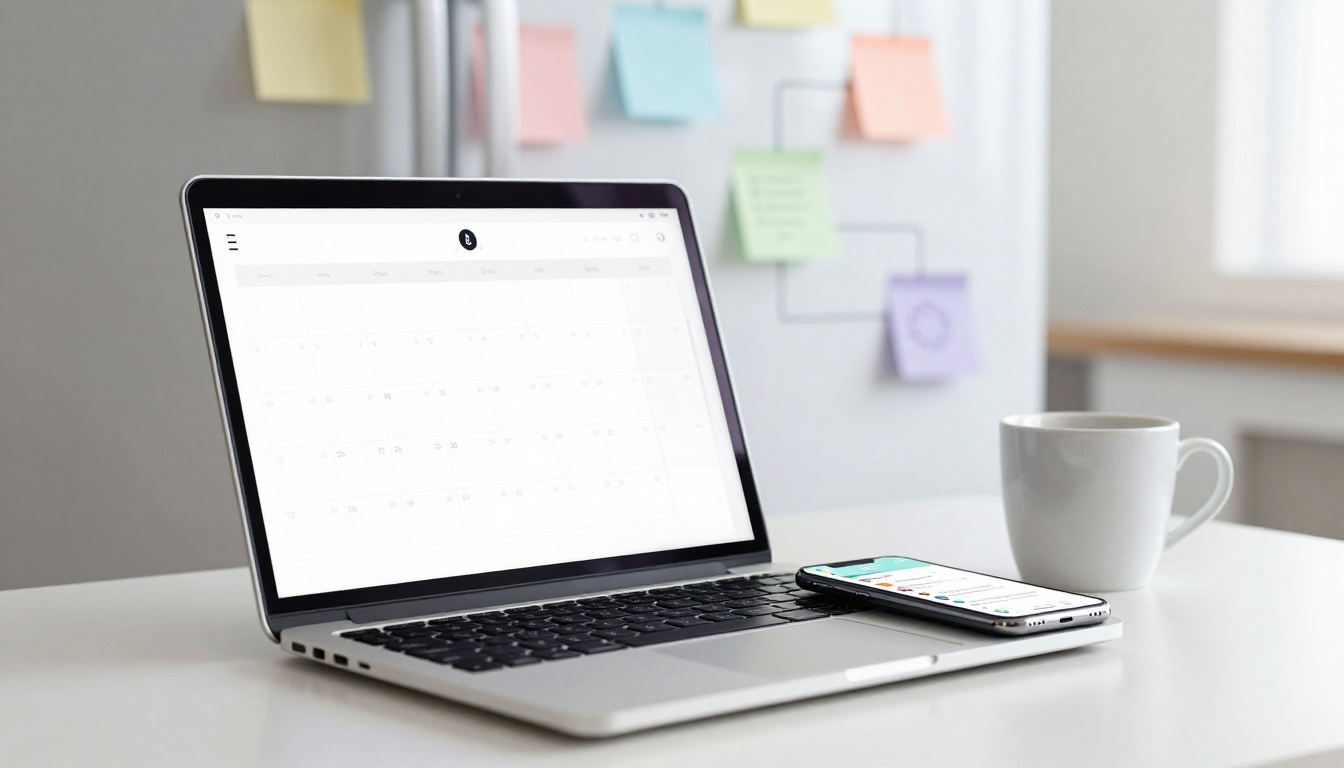
For most people, Google Calendar is the cleanest free option. It’s quick, it’s everywhere, and it plays nicely with other tools. The real win is how easily it handles the messy reality of life: work blocks, school runs, birthdays, and “I need to leave early because parking is awful”.
A few habits make it feel like a personal assistant rather than a grid:
Colour-code your calendars: keep separate calendars for work, personal, and family, then toggle them on and off. Suddenly your week looks like a map, not a fog.
Use the weekly view: daily view is fine, but weekly view shows collisions before they happen (that gym class you keep booking on the same night as the food shop).
Add two reminders: one the day before (so you can prepare), and one before you need to leave (so you actually go). If you’re heading to a new place, add the address so your phone can route you.
Share what needs sharing: a shared family calendar cuts the “did you know about this?” arguments. Keep it limited to what matters, like school events and appointments.
Some task apps also offer calendar views. TickTick, for example, can show tasks alongside events, which helps if you like seeing your day as a single timeline. It’s useful when you’re trying to fit in a workout, a call, and a deadline without pretending you have ten spare hours.
Free task managers that turn plans into daily action
A task list isn’t a museum of good intentions. It’s a conveyor belt. The best free task manager is the one you’ll open without sighing.
Here’s a plain-English guide to popular free choices:
Todoist: Best for quick capture and simple structure. You can type tasks in natural language (like “Call mum tomorrow 3pm”) and keep projects for work, home, and errands. If you want a deeper comparison of task apps, PCMag UK’s task management roundup is a helpful starting point.
TickTick: Best if you like tasks plus focus tools in one place. It includes a Pomodoro timer and habit features, which suits people who struggle to start, not just to plan.
Microsoft To Do: Best if you live in Outlook and Microsoft 365. It’s simple, clear, and makes day-to-day lists feel lightweight rather than heavy.
Trello: Best for visual thinkers and small projects. It’s a board with columns and cards. Great for “Meal Plan”, “House Jobs”, or “Moving House”, where tasks need a journey, not just a tick.
Mini examples you can copy today:
- “Pay council tax” (task, with a due date and a reminder)
- “Meal plan board” (Trello board with columns: Ideas, This Week, Shopping List)
- “Call mum tomorrow 3pm” (task with time, so it becomes a scheduled action)
If you feel tempted to create ten projects before you’ve finished one, keep it strict: start with three lists, Home, Work, Errands. Earn the rest later.
Get organised once, then keep your life tidy with notes, lists, and light systems
Organisation isn’t about being the sort of person who owns label makers. It’s about knowing where things live. When an idea arrives, it needs a landing pad. When a document matters, it needs a home. When a routine repeats, it needs a checklist you don’t have to rewrite.
Think of it like a hallway in a house. If the hallway is blocked with shoes and bags, every trip outside turns into a stumble. Your notes system is that hallway. Clear it, and everything feels easier.
It helps to separate two kinds of notes:
- Quick notes: fast, messy, made on the move.
- Home base notes: stable pages for projects, checklists, and longer plans.
Templates can help, but don’t let templates become the hobby. The goal is less thinking, not more tinkering.
A simple starter structure that fits most lives:
Inbox (catch-all), This Week, Home, Money, Health.
You can build that structure in a notes app, a doc, or a workspace tool. The shape matters more than the brand.
Quick notes for real life: shopping, ideas, and reminders on the go
Google Keep is brilliant because it doesn’t ask you to be organised before you’re organised. You open it, tap, and the thought is saved. That’s the whole promise.
A few features make it more useful than it looks:
Labels: give notes a simple tag like “Groceries”, “Gift ideas”, or “Car”. Later, you can pull up only what you need.
Checklists: perfect for shopping, packing, and “things to ask the GP”. Tick items off as you go, and the list becomes a small win rather than a nag.
Pinning: pin your active list (like groceries) to the top so it’s always there.
Sharing: shared lists are where Keep shines. One person adds “washing up liquid”, the other sees it in the shop without a text message.
Example: make a shared “Weekly shop” checklist with your usual items. When you notice you’re low on pasta, tick it on. The list becomes a quiet agreement between you and your future self.
If you want a broader view of free tools people use for daily organisation, this 2026 productivity apps list can help you spot alternatives that match your habits.
One free “home base” for projects, goals, and checklists
If Google Keep is a pocket notebook, Notion is a whole desk. It’s a flexible free workspace where you can keep pages for projects, goals, and “life admin” in one place. The danger is building an elaborate system you don’t use. Keep it light.
Start with one page: Weekly Plan.
On that page, add:
- A short “Top 3 priorities” section
- A checklist for recurring admin (bins out, prescriptions, school forms)
- A mini meal plan (nothing fancy, just names of meals)
- A running list called “Waiting on” (deliveries, replies, appointments)
Other practical pages that stay useful:
Subscription list (what you pay for, when it renews), House manual (paint colour, boiler info, Wi-Fi details), Health notes (symptoms, appointments, questions to ask).
If Notion feels like too much, don’t force it. A Google Doc or Apple Notes can be a home base too. The win is having one reliable place, not having the “best” tool. If you’re curious about newer planning assistants and how people combine calendars and tasks, Morgen’s guide to AI planning assistants gives useful context without pushing you into a complicated set-up.
Automate the repeat stuff, so your brain can rest
Automation sounds like a big word, but it’s just this: when X happens, do Y. It’s a way to stop redoing the same tiny decisions.
There are three levels:
App notifications: reminders and alerts inside a single tool (like “take the bins out”).
Built-in automations: recurring tasks, templates, rules, or filters inside one app.
Cross-app automations: when two apps talk to each other, like saving an attachment from email into a folder.
Two ground rules keep automation helpful rather than creepy:
- Only connect apps you trust, and only for a clear purpose.
- Review permissions once a month, and remove anything you’re not using.
Free tiers are usually enough for personal life, but they have limits (task caps, fewer steps, fewer runs per month). Treat automations like spices. A little changes the meal, too much ruins it.
Easy free automations with IFTTT and Zapier free tiers
IFTTT and Zapier are the classics for simple personal automations. You don’t need to be technical. You choose a trigger, choose an action, and test it once.
Ideas you can copy (and keep realistic):
Star an email, create a task: when you star an email in Gmail, it becomes a task in your task manager. It’s a neat way to turn “please do this” into a tracked action.
Receipts saved automatically: when a receipt lands in your inbox, save the attachment to a chosen Google Drive folder. Later, tax time hurts less.
Weather nudge: if tomorrow’s forecast shows rain, add a reminder to pack an umbrella. It sounds small, but it stops the drip-dry commute.
Calendar event creates a checklist: when you add “Holiday” to your calendar, automatically create a packing checklist in notes or tasks.
Low battery alert: when your phone battery drops below a set level, send yourself a notification (useful if you’re out all day and always forget a power bank).
Save articles to read later: when you save an item in an RSS reader, copy the link into a note called “Read This Week”.
If you want to see how other people think about “one place you trust” for organisation, Self-Manager’s 2026 organisation apps overview has practical angles you can borrow without copying their whole system.
Build a “set and forget” weekly reset in 15 minutes
Tools only work when you look at them. The easiest way to stay in charge is a short weekly reset. Put it on your calendar as a recurring event. Treat it like brushing your teeth. It’s not dramatic, it’s protective.
A simple 15-minute reset:
Minute 1 to 4 (Calendar): scan the week. Add travel time. Spot any clashes early.
Minute 5 to 8 (Tasks): pick three priorities for the week. Then choose one small task for Monday that makes you feel on track.
Minute 9 to 11 (Notes Inbox): clear your Keep or notes inbox. Move anything important into your home base, delete the rest.
Minute 12 to 14 (Life admin): set recurring reminders you always forget (bin night, prescriptions, paydays, birthdays).
Minute 15 (Food and friction): decide 3 easy dinners and add the missing items to your shopping list.
Example schedule: Sunday at 18:30, or Monday at 08:15 with a cup of tea. The time doesn’t matter. The repetition does. Over a month, the reset becomes a quiet safety net. Fewer surprises, fewer last-minute scrambles, fewer “how did I miss that?” moments.
A calmer week starts with one small set-up
The best free tools for planning, organising and automating your life aren’t magic. They’re containers. Pick one calendar for time, one task app for actions, and one notes home base for everything you don’t want to carry in your head. Then add one or two automations that remove repeat jobs you hate.
Set aside 30 minutes today. Choose your stack, set up three lists, and try it for one week. Don’t aim for perfect, aim for used.
Before you close this page, name the one thing you always forget. A birthday, a bill, the weekly shop, taking your gym kit. Now choose the tool that will catch it for you, and let your system do the remembering.