
Listen to this post: How to Secure Your Banking App Settings in 10 Minutes (January 2026)
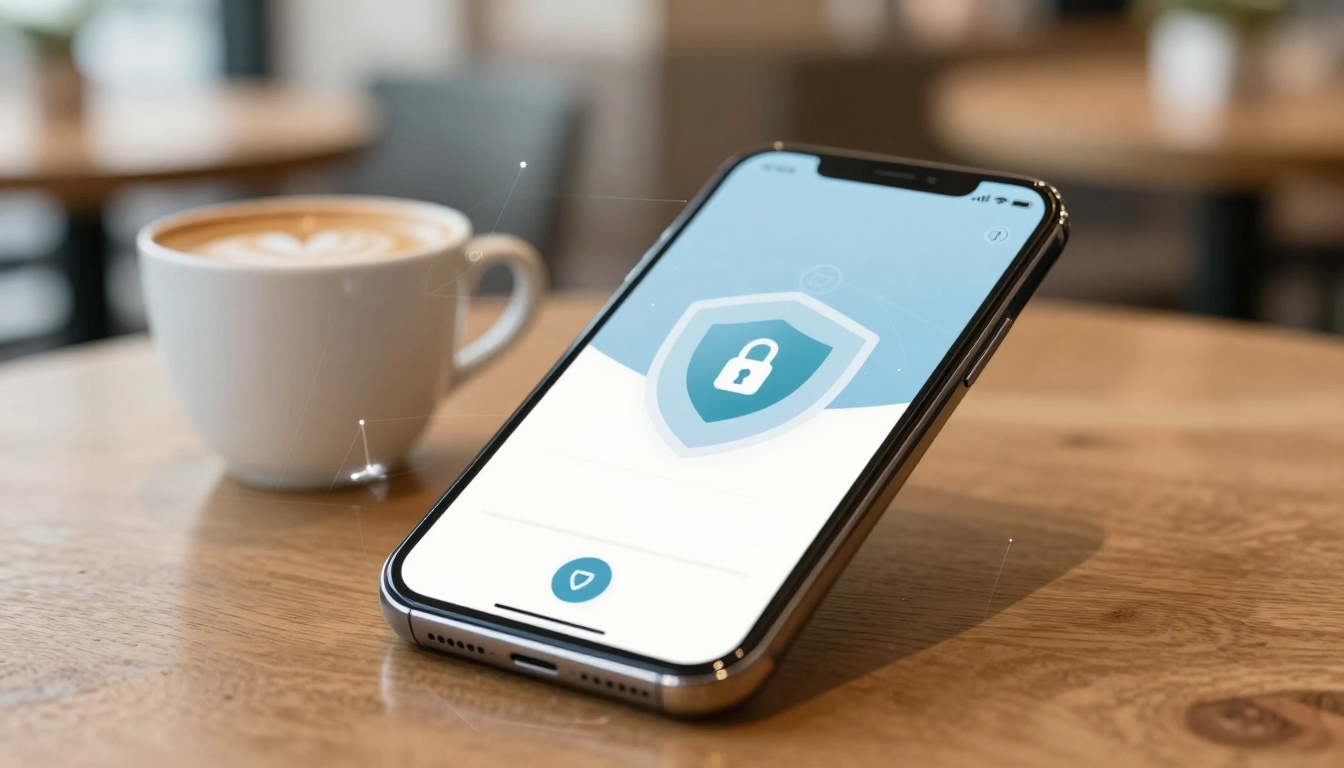
Picture this: your phone sits on a café table while you queue for a flat white. One tap and you’re staring at your balance, your cards, your payees, your whole money life. That convenience is brilliant, until a weak setting turns it into an open door.
The good news is you don’t need tech skills to tighten things up. In 10 minutes, you can block the most common account takeover routes using settings you already have, inside your banking app and your phone.
It’s January 2026. UK banks have strong defences and have been stopping huge amounts of fraud (they prevented £1.45 billion in unauthorised fraud in 2024), but most successful attacks still come down to small, avoidable gaps: a missing second step at login, loose permissions, or silent alerts.
Start with the three settings that stop most break-ins
If you only do three things today, do these. They’re the big locks on the front door. Everything else is helpful, but these settings carry most of the weight because they protect the moment someone tries to sign in or view your money.
A quick note before you start: banking apps label menus differently. Look for Settings, Security, Login, Privacy, or Profile. If you’re stuck, use the in-app search (many apps have one) and type “two-step”, “biometric”, or “devices”.
Turn on multi-factor authentication (pick app codes over SMS when you can)
Multi-factor authentication (MFA) means you need two proofs to log in, not just a password. Think of it like needing both a key and a door code.
In most banking apps, the path looks like one of these:
- Profile or Settings, then Security
- Login & security
- Two-step verification, 2FA, or Authentication
When you have options, prefer an authenticator app code (or an in-app approval prompt) over SMS text messages. SMS can be intercepted in rare cases, or redirected if a criminal manages to take over a phone number (often called a SIM-swap). This isn’t about panic, it’s about choosing the stronger lock when it’s offered.
Common “best” options, in order:
In-app approval prompts: You sign in, your bank app asks “Is this you?”, you approve with Face ID or fingerprint.
Authenticator app codes: A code changes every 30 seconds, and it’s tied to your device.
SMS codes: Better than nothing, but not the first choice.
A 20-second check that your MFA actually works:
- Log out of the banking app.
- Log in again.
- Confirm you’re asked for the second step (prompt, code, or similar).
If you don’t see a second step, you haven’t finished, even if it looked “enabled”. For a plain-English explanation of safe habits around online banking, CyberScotland has a useful guide on cyber-secure banking best practice for individuals.
Use Face ID or fingerprint, and set a strong backup PIN
Biometrics (Face ID or fingerprint) make your bank app harder to open if someone gets hold of your phone. They also stop a big problem: people picking short, guessable passwords because they’re tired of typing them.
Inside your bank app, look for:
- Biometric login
- Use Face ID / Touch ID
- Fingerprint login
- App lock
Then check your phone’s own lock, because it becomes the “master key” if your bank app falls back to the device passcode.
Make these choices:
Use a 6-digit passcode or longer (or a full password) for your phone. If you’re still on 4 digits, change it.
Avoid obvious patterns like 123456, 000000, your birth year, or “111111”.
Register more than one finger if you use fingerprint unlock, so you’re not stuck after a small cut or a cold day.
Turn on app lock if your bank offers it, even if your phone is already locked.
One extra switch that’s often overlooked: some apps can hide sensitive info on the home screen. If you see options like “Hide balances”, “Hide account details”, or “Privacy mode”, turn them on. If your phone is snatched, you don’t want your account numbers and balances sitting there like a label on luggage.
If you’ve ever read stories about thieves taking phones and moving money fast, it’s usually not because banking apps are weak, it’s because people’s settings were too forgiving. Which? has a practical consumer-focused write-up on keeping mobile banking apps safe that matches what banks keep repeating: lock the phone, lock the app, don’t let anyone watch your PIN.
Tighten privacy, permissions, and alerts so nothing slips past you
The next layer is quiet. It’s not about “breaking in” with a dramatic hack. It’s about small leaks and missed signals. A banking app that can send the right alerts, and isn’t sharing data or relying on unnecessary permissions, is much harder to misuse without you noticing.
A good mindset here is simple: reduce what your phone gives away, and increase what your bank tells you.
Cut permissions to the bare minimum (then check privacy sharing)
Permissions are the “may I?” prompts that apps ask for: camera, contacts, location, photos, notifications. Many are harmless in the right context. Some are pointless for a banking app.
Start at phone level.
On iPhone:
- Settings, Privacy & Security, then the permission type (Location Services, Photos, etc.), or
- Settings, scroll to your bank app, then review toggles
On Android:
- Settings, Apps, select your bank app
- Tap Permissions
A sensible baseline for most people:
Notifications: Yes (you’ll set security alerts in the next section).
Camera: Only if you use cheque scanning or document upload.
Location: Only if your bank explains it clearly (some use it for fraud checks).
Contacts, Microphone, Photos: Usually no, unless there’s a clear feature you use.
After phone permissions, check inside the app for privacy settings. Look for:
- Privacy
- Data sharing
- Third parties
- Connected apps
- Open Banking connections
- Devices and access
If you see services you don’t recognise, revoke them. If you connected a budgeting app a year ago and forgot, remove it now and reconnect later if you still want it.
A helpful rule: if you can’t explain why something is connected, it shouldn’t be connected. The less clutter you allow around your bank login, the fewer “side doors” exist.
If you’re curious how banks think about trust and “safe by design” choices, this article on banking app UX best practices is a useful reminder that security is often built into small, everyday decisions, like how login screens and permission prompts are handled.
Switch on the right alerts, so you spot fraud in seconds
Alerts turn your banking app into a smoke alarm. You want it loud for the dangerous stuff, quiet for everything else.
In the app, check Notifications, Alerts, or Security alerts. Turn on alerts for events that matter. The exact names vary, but look for:
New login or sign-in: Best alert you can set.
Password, passcode, or security detail change: If this fires and it wasn’t you, act fast.
New payee added: Many fraud attempts start by adding a payee.
Large transfer or bank transfer sent: Set the threshold low enough that you’ll notice.
Card-not-present purchase (online payments): Useful if your card details are misused.
New device added or trusted device change: Stops silent takeovers.
Then reduce alert fatigue. Turn off marketing and “product updates” notifications if they crowd your lock screen. You want to notice the important alerts, not ignore them out of habit.
One safety line that saves people from scams: if an alert looks real but feels wrong, don’t tap it. Open your bank app normally, or contact the bank using the number on your statement or the official number on the bank’s website, not a number inside a pop-up.
Alerts are your early warning. They don’t just protect money, they protect time. Catching a problem in seconds is very different to finding it next week while you’re half-asleep checking your balance.
Do a 2-minute safety sweep of your phone and app
You’ve set the locks and the alarms. Now do the quick sweep that stops those settings being undermined by an out-of-date phone or an old device still trusted somewhere.
Set a timer for 2 minutes. This is the part people skip because it feels boring. It’s also the part that keeps everything else working.
Update the app and your phone, then remove risky extras
Updates aren’t only new features. They’re security patches, the quiet repairs that close gaps you didn’t know existed.
Do this now:
Update your banking app from the Apple App Store or Google Play Store (not from a link in an email or text).
Update your phone OS (iOS or Android) if an update is waiting.
Turn on auto-updates if you’re comfortable with it, so you’re not months behind.
Then remove what you don’t use:
- Old banking apps you no longer need
- Money transfer apps you tried once
- Coupon or “free reward” apps that ask for wild permissions
Avoid sideloaded apps (apps installed outside official stores). Also avoid using a rooted or jailbroken phone for banking. It can weaken the protections your banking app expects.
Public Wi-Fi is another weak spot. If you’re doing anything involving payments, new payees, or security changes, use mobile data or a trusted hotspot. Save café Wi-Fi for the news, not your money.
For more background on how mobile banking systems are built and where common risks sit, this overview of mobile banking app development gives a clear sense of why banks depend on secure devices and clean update habits.
Check saved logins, trusted devices, and your last few logins
Most banking apps now show where you’re signed in, or which devices are trusted. This is the “who still has a key?” check.
Inside your app, look for:
- Trusted devices
- Remembered devices
- Active sessions
- Where you’re logged in
- Recent logins
- Security activity
What to do when you find something:
Old phone you sold or recycled: Remove it.
Tablet you never use: Sign it out.
Browser session you don’t recognise: End session and change your password.
If anything looks unfamiliar, treat it like a smoke alarm. Don’t wait. Sign out other devices, change your password, and contact your bank if you see suspicious activity.
Keep password advice simple:
- Make it long and unique
- Don’t reuse the same password from email or shopping sites
- If you already use a password manager, let it generate one for your banking login
A password doesn’t need to be clever, it needs to be hard to guess and not used anywhere else. Think of it like a unique key cut for one lock only.
Conclusion
A secure banking app isn’t about doing a hundred things. It’s three pillars: strong login (MFA plus Face ID or fingerprint), tight permissions and useful alerts, and a clean, updated phone with no mystery devices still trusted.
Once you’ve done today’s 10-minute tidy-up, keep one habit. Once a month, spend 60 seconds checking recent logins and your key alerts. It’s like glancing at the front door before bed.
Open your banking app now while this is fresh. Flip the switches, run the 2-minute sweep, and give your money the kind of protection you’d expect from a bank vault, not a café table.