



Listen to this post: How to Keep Your WhatsApp and iMessage Chats More Private
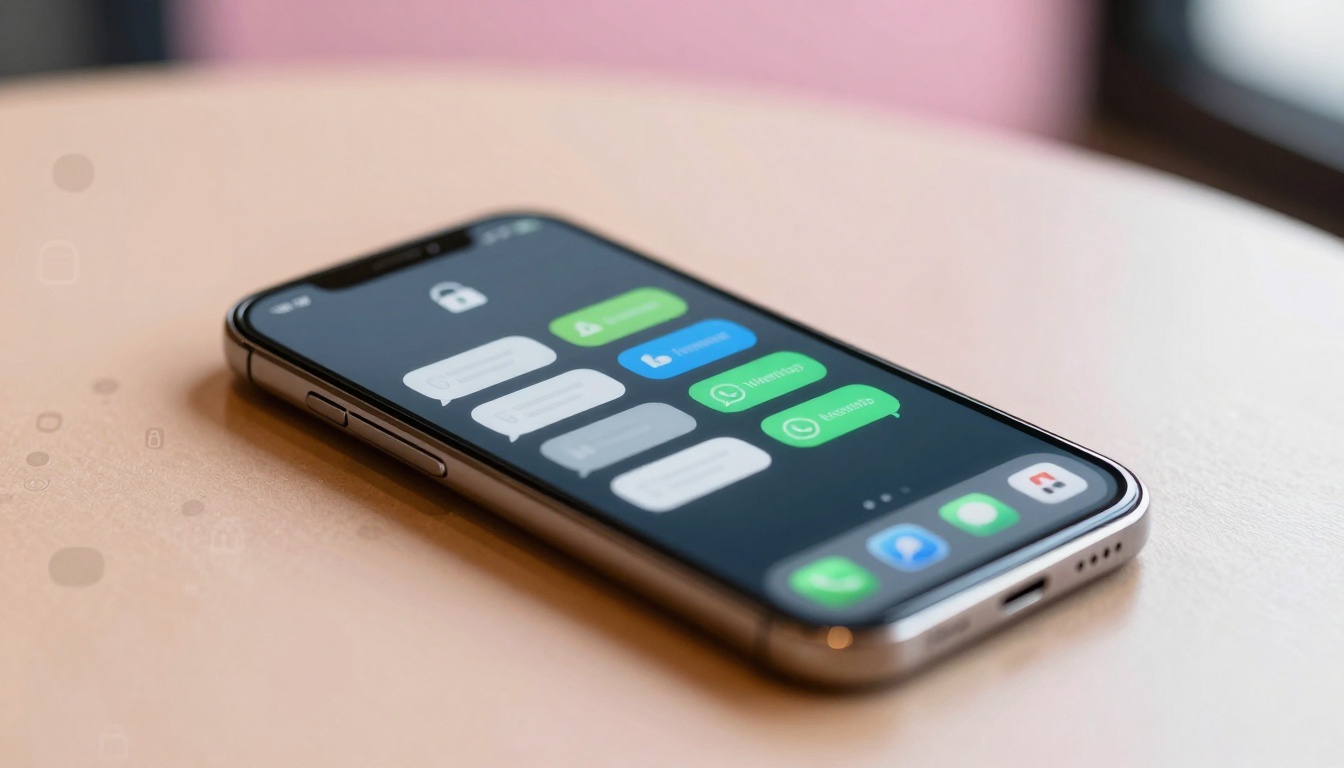
Picture this: your phone lights up on the table at a cafe. A mate grabs it to check the time, and there pops a WhatsApp notification with a snippet of your family chat. Heart sinks, right? Moments like that happen too often. In our busy lives, these apps hold work plans, private jokes with partners, or health talks with doctors. Snoops, hackers, or even nosy colleagues can peek if you leave defaults on.
Both WhatsApp and iMessage start with end-to-end encryption. That means only you and the recipient read the messages. But extras matter. Notifications leak previews. Strangers call. Backups sit unencrypted. This post walks you through simple steps for each app. First, WhatsApp tweaks from recent 2026 updates. Then iMessage on iOS and macOS. Finish with habits for both. Follow along, and your chats turn into locked diaries. No more worries about prying eyes.
Shield your WhatsApp chats from unwanted eyes
Start in the app with WhatsApp’s Privacy Checkup. Open Settings, tap Privacy, then Privacy checkup. It scans your setup in seconds and flags weak spots. Set last seen and online status to My contacts or Nobody. Do the same for profile photo, about info, and status updates. Now, only trusted people spot when you’re active or see your pic.
Hide your full presence further. In the same menu, block profile photo and status from non-contacts. Imagine your chat list as a front door with a peephole. These settings slam the cover shut. For calls from unknowns, switch to Silence unknown callers. No rings from strangers, just quiet.
Chats themselves need locks. Chat Lock tucks sensitive threads into a hidden folder. Swipe from the chats tab, enter your code or use Face ID. It hides notifications too. Like stashing cash in a safe behind a painting. Set it per chat: long-press a thread, tap Chat lock.
Disappearing messages add another layer. In any chat, tap the name, go to Disappearing messages, pick 24 hours or seven days. Old stuff vanishes automatically. Perfect for quick shares that don’t need to linger.
Groups stay tricky. Set group privacy to My contacts only. Strangers can’t drag you in without approval. Block links from unknowns too. These blocks stop spam floods right away.
Advanced bits shine in 2026 updates. Turn on IP protection in calls under Settings > Privacy > Advanced. It masks your location data. Opt out of AI training the same way. For deeper steps, check WhatsApp’s official privacy guide.
Set up two-step verification and encrypted backups
This seals your account tight. Go to Settings > Account > Two-step verification. Create a six-digit PIN. Link an email for recovery. Now, logins need it alongside your phone number. Blocks SIM swap scams where thieves hijack your line.
Passkeys swap SMS codes for biometrics. Enable in the same spot. Face ID logs you in fast and safe.
Backups stay risky without encryption. In Settings > Chats > Chat backup, turn on end-to-end encrypted backups. Pick a password only you know. No cloud peeks at your history. Request your account info yearly too: Settings > Account > Request account info. See what data WhatsApp holds.
These steps add steel doors to your digital home.
Enable advanced chat privacy for groups
New in recent updates, Advanced chat privacy locks chats tighter. In a group or one-on-one, tap the name at top. Scroll to Advanced chat privacy and toggle on. Blocks exports, auto-downloads to galleries, and some AI queries. A notice pops for all members.
Ideal for work deals or family secrets. Everyone knows it’s active. See WhatsApp’s details on this feature. Quick win for touchy topics.
Make iMessage chats invisible to outsiders
Switch to Apple turf. iMessage encrypts by default between devices. But previews flash on lock screens. Fix that in Settings > Notifications > Messages. Turn off Lock Screen previews or set to Name and no message. No snippets show when your phone sleeps.
Hide your name and photo from replies. In Messages settings, toggle off Show Previews and Name and Photo Sharing if unwanted. Ghost devices lurk sometimes. Check Apple ID in Settings > your name > Devices. Remove old ones.
Read receipts tip off readers. Turn them off in Messages settings. Replies stay blind. Shared with You pulls photos from others; disable if it bugs you.
Multi-device sync works safe across iPhone, iPad, Mac. Sign in with the same ID. Upcoming RCS boosts Android chats, but stick to Apple for now.
Lock screen peeks vanish like mist. Test it: send yourself a message. Blank notification greets you.
Filter unknown senders next.
Filter spam and silence unknown senders
iOS sorts junk smart. In Settings > Messages, tap Filter Unknown Senders. Texts from non-contacts land in a separate tab. No buzz or banners. Spam labels auto-apply too.
Silence calls from unknowns in Phone settings > Silence Unknown Callers. Links to Messages for texts. Clean inbox, no distractions. For Apple’s full controls, visit their privacy settings page.
Daily habits to keep both apps super secure
Update apps weekly. Patches fix holes fast. Test setups with a trusted friend: hide status, send a locked chat, check previews.
Strong passcodes rule. Six digits minimum, or biometrics. Avoid public Wi-Fi for chats; it sniffs data. Use VPNs if you must.
Report spammers quick. Block and report in-app. WhatsApp’s username beta hides phone numbers; join if available.
Metadata lingers: who you chat with, when. Encryption hides words, but patterns show. Check data requests yearly.
These routines lock habits in. Your chats breathe easy.
Apple’s tools pair well with extra WhatsApp boosts from experts.
Strong privacy starts with you. Run that Privacy Checkup today. Lock a chat. Hide previews. Your family talks and work notes stay safe from cafe glances or hackers.
Peace of mind follows. Check settings monthly; apps shift. Which tip hits home first? Try it now, share in comments. Safe chatting, mates.
(Word count: 1487)