
Listen to this post: What a Hacker Can See on Open Networks (With Simple Examples)
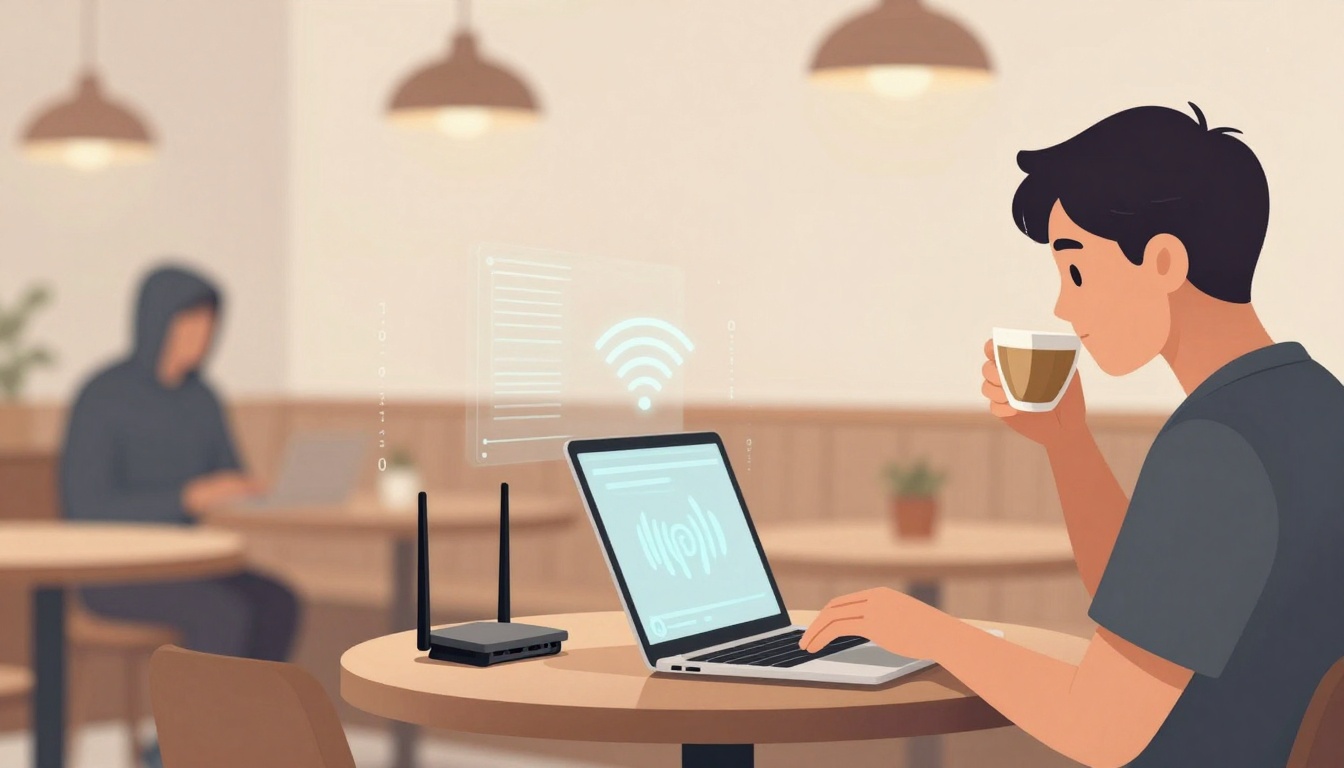
You’re in a busy café, balancing a flat white and a laptop. The Wi-Fi is free, the signal is strong, and the password is either blank or printed on a chalkboard for everyone to use. That kind of connection is an open network (or a “shared password” network), where anyone nearby can join with almost no friction.
Most people picture “hacking” as breaking into accounts. In reality, on open Wi-Fi, a lot can be learned without breaking anything at all. Someone sitting a few tables away can sometimes watch the flow of data, collect clues about your device, and spot weak points where information leaks.
This post is calm, practical awareness. It explains what someone on the same network can see, what they might be able to steal in the worst case, and the simple habits that cut your risk fast.
What a hacker can learn just by sharing the same open network
Think of open Wi-Fi like a crowded room where lots of conversations happen at once. Some people whisper (encrypted traffic), others speak normally (unencrypted traffic), and even a whisper still tells you who’s talking to whom.
On many public networks, other people on the same Wi-Fi can observe parts of what your device is doing. They might not see the words you type, but they can often see the “outside of the envelope”: which devices are connected, which services your device contacts, and when.
The big protective layer today is HTTPS (the padlock in your browser). When a site uses HTTPS properly, it encrypts what you read and send, such as passwords, messages, and payment details. That’s why modern web browsing is far safer than it was years ago.
But gaps still exist:
- Some older websites and low-budget apps still send data without strong encryption.
- Misconfigurations happen, such as mixed content, broken certificate checks, or out-of-date app libraries.
- “Helpful” network pages (log-in portals and pop-ups) can be faked.
- Even when content is encrypted, some metadata can still leak, such as which domain your device is trying to reach.
If you want a broader look at common public hotspot risks and why they keep working, see How-To Geek’s guide to public Wi-Fi risks. It’s a good companion piece to what you’ll read here.
Your device leaves a trail, even if you never type a password
The moment you join an open network, your device has to announce itself so it can send and receive data. That creates a small “profile” that others on the same Wi-Fi may be able to spot.
Here’s what can be visible without anyone cracking passwords:
- Device name: Many phones and laptops broadcast a friendly name. It can be as clear as “John’s iPhone” or “Sarah-MacBook”. Some workplaces set names like “Work-Laptop-014”.
- Device type clues: Other users may infer whether you’re on iOS, Android, Windows, or macOS based on how your device behaves on the network.
- MAC address: This is like a device ID for network hardware. Modern devices often use MAC randomisation, which helps, but it’s not perfect in every situation.
- IP address: This is the local address your device is given on that Wi-Fi. It’s not your home address, but it helps someone track what traffic came from which device on that network.
- Sometimes, Wi-Fi history hints: In certain cases, devices reveal the names of networks they’ve joined before, especially with older settings or older devices. Even one network name can be a clue about where you live, work, or travel.
A simple example: you open your laptop, it auto-connects, and your device shows up as “Clare-Work-Laptop”. That tells a stranger (1) you might be on a work machine, (2) your first name might be Clare, and (3) you likely have access to work email or work systems. That’s enough for targeted scams, stalking, or social engineering attempts later.
Websites and services you use can still show up as clues
Even when your browsing is encrypted, your device still needs to find and contact services on the internet. That process can leak hints.
Two common sources of clues are:
- DNS lookups: DNS is how your device asks “what’s the address for this site?” On some networks, those requests can be observed. Even with modern encrypted DNS options, not everyone has them switched on.
- Connection metadata: Someone may see that your device connected to a particular domain, how often, and at what times. They might not see the page content, but patterns can still speak.
Simple examples of what this might reveal:
- You keep checking a job board domain during a lunch break. That suggests you’re job hunting.
- You visit a health-related domain several times. That suggests an interest in a condition, a medication, or support services.
- You connect to a football scores site every few minutes during a match. That reveals your attention and routine.
It sounds minor, but metadata can be used to build a story about you. It also helps attackers choose the right angle. A person who looks like they’re job hunting may get a “recruiter” email. A person reading about travel may get a fake airline message.
For more context on how criminals use public Wi-Fi as a starting point for identity theft, this overview of common public Wi-Fi abuse is a useful read.
What they can actually read, capture, or steal (with simple examples)
It helps to separate two situations:
- Encrypted traffic (good): The attacker can often see you connected to a site, but they can’t read the content.
- Unencrypted or weakened traffic (bad): The attacker may read what you send, capture login details, or copy data moving across the network.
Most mainstream sites now use HTTPS by default, which blocks the simplest “look over your shoulder” network spying. But weak links still pop up, especially with older sites, smaller apps, and moments when you get nudged onto a less safe path.
When a site or app isn’t encrypted, your data can be seen in plain text
“Plain text” means readable text, like viewing a postcard. If a service doesn’t encrypt properly, someone on the same Wi-Fi may be able to see what’s being sent.
Everyday examples:
- Logging into an old forum: You sign into a niche forum that still uses HTTP, or loads its login form in an unsafe way. Your username and password can travel without protection.
- Sending a message in a poorly built app: Some apps handle logins securely but send chat messages or form data in ways that leak. That might expose private messages, email addresses, or phone numbers.
- Submitting an email on a basic form: Think “join our newsletter” forms on small sites. If the page isn’t secured, the data can be visible as it’s sent.
A key point: even if a site looks normal, a weak connection can still appear when a page loads extra resources without encryption, or when an app fails to verify certificates correctly. That’s one reason security teams keep repeating a boring message: keep apps updated. Fixes often cover exactly these mistakes.
If you want a high-level view of the kinds of public Wi-Fi attacks seen in the wild, Security Affairs’ rundown of public Wi-Fi attack methods shows the range without pretending it’s only one trick.
Session hijacking, when they don’t need your password to become you
Passwords aren’t the only key to an account. After you log in, many services give your browser or app a “session token” (often stored in a cookie). You can think of it like a wristband at an event. You show your ticket once, then the wristband gets you back in.
If an attacker gets that session token on a weak connection, they might not need your password at all. They can sometimes “be you” for that session.
Relatable outcomes look like this:
- You’re signed into a shopping account on café Wi-Fi. Someone grabs a session token, opens your account, and changes the delivery address for your next saved-order.
- You’re logged into social media DMs. Someone hijacks the session and reads private messages, or sends a message that looks like it came from you.
- You’re in webmail. Someone steals the session, then uses your inbox to reset other accounts.
This risk varies a lot. Big services invest heavily in protection, such as binding sessions to devices, watching for odd logins, and shortening session life. But weaker sites and some apps still get it wrong.
It also fits a 2026 reality: attackers don’t need to babysit every target. Scanning and collection can be automated, then the “interesting” sessions get tried later. That lines up with a broader trend where credential abuse stays popular because it’s cheap and reliable. For a wider security view of where attacks are heading, Zero Networks’ cyber risks outlook adds context on how initial access often happens.
How open Wi-Fi attacks usually happen in the real world
Most real-world public Wi-Fi attacks aren’t movie scenes. They’re opportunistic. The attacker wants the easiest win: readable data, a copied session, a convincing fake sign-in page, or a malware link that gets clicked.
In 2026, the pattern is often “set and wait”. A person (or a small kit) sets up in a crowded place, watches for weak traffic, and collects whatever falls into the net. More of the sorting is automated now, which means the attack can scale without much effort.
Packet sniffing and man-in-the-middle spying, the “someone’s listening” problem
Packet sniffing is basically recording network traffic on a local network. Tools exist for this, including well-known analysers like Wireshark. The point here isn’t how to use them, it’s that they’re common and easy to find.
On open Wi-Fi, sniffing can expose:
- Unencrypted page requests and form submissions
- Unprotected app traffic
- Clues about what services you connect to and when
A related idea is a man-in-the-middle (MitM) situation. That means someone positions themselves between you and the site you think you’re using. If the connection isn’t protected end-to-end, that middle person can sometimes read or even alter what passes through.
A short scenario: you’re at an airport, you click a link for a download on a non-HTTPS page, and the network path gets interfered with. Instead of the real file, you get a swapped link or a tampered download page. Even if you don’t type a password, you can still end up with a problem.
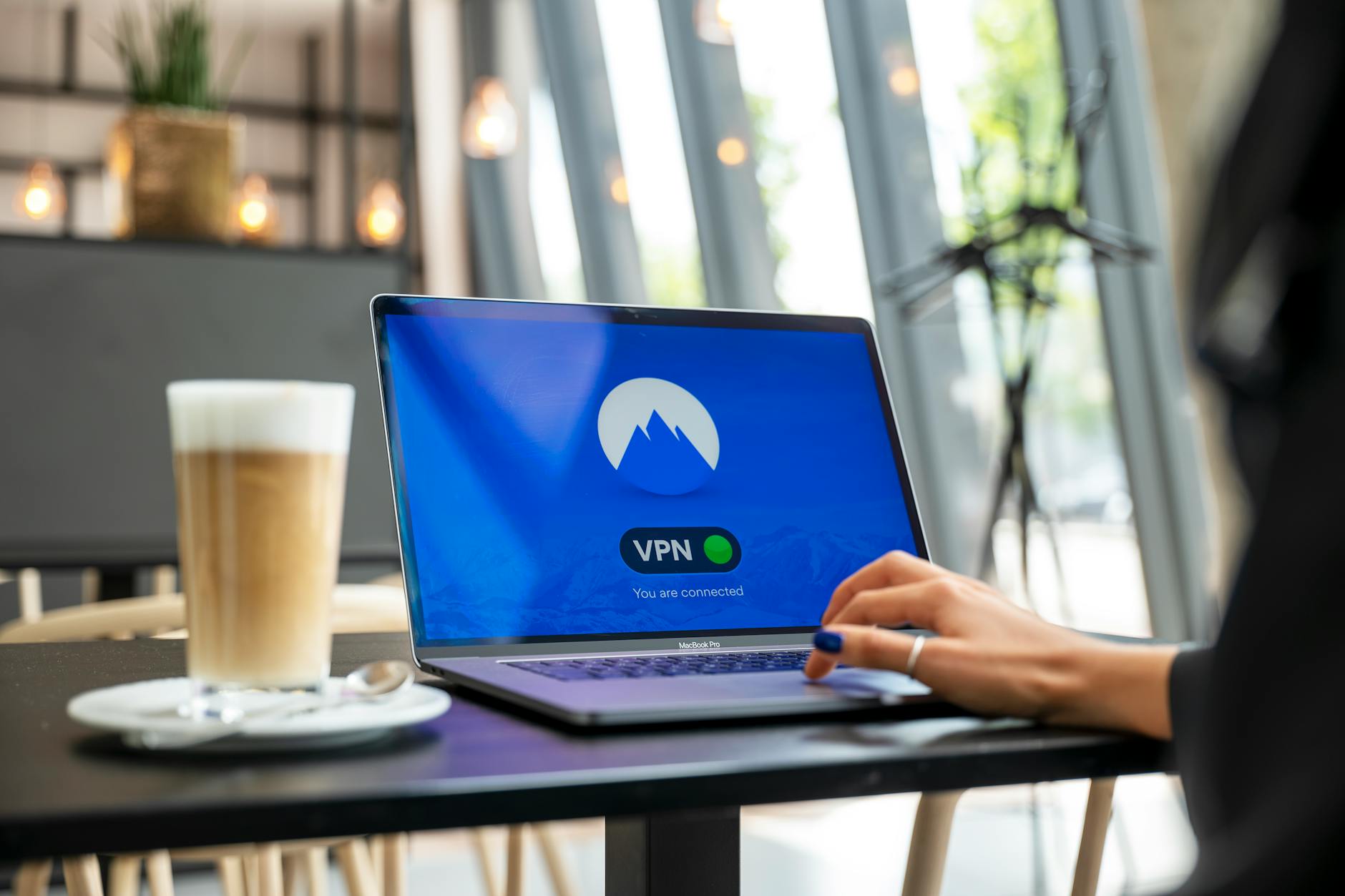 Photo by Stefan Coders
Evil twin hotspots and fake sign-in pages that look normal
An evil twin hotspot is a copycat network name. You might see “Airport_Free_WiFi” and “Airport Free WiFi” side by side. One could be real, one could be a trap.
Attackers like evil twins because they don’t need to beat encryption if they can trick you first. They often use a captive portal (the sign-in page that appears when you connect). A fake portal can ask for:
- Email address and phone number (useful for spam and targeted scams)
- Social media logins
- Even your Wi-Fi or email password (a strong red flag)
Signs a portal is off:
- Two networks with almost the same name and similar signal strength
- No clear staff signage, such as the café name and the exact Wi-Fi name
- A portal that asks for far too much (passwords for unrelated accounts)
- Browser certificate warnings, especially if you’re pushed to “accept” something
Some attackers also use these portals to push malware links disguised as updates, such as “Wi-Fi security patch” or “speed booster”. If a network asks you to install anything to “get online”, treat it as hostile.
How to use public Wi-Fi safely without giving up convenience
You don’t need to swear off public Wi-Fi forever. You just need a few habits that block the common failure points: visibility, theft, and impersonation.
A simple safety checklist you can do in under two minutes
- Use a VPN on public Wi-Fi: A VPN encrypts your traffic so nearby watchers see far less. It helps most with sniffing and basic spying.
- Prefer mobile data for banking and payments: If it’s money, use your own connection. This reduces the chance of session theft on risky hotspots.
- Check for HTTPS and don’t ignore certificate warnings: The padlock matters. Warnings are your browser saying “something’s wrong”.
- Turn off auto-join for public networks: Auto-join can connect you to a lookalike network later without you noticing.
- Use two-factor authentication (2FA): If a password leaks, 2FA can stop a takeover.
- Keep devices and apps updated: Updates fix the exact bugs attackers rely on.
- Use private DNS if your device supports it: It can reduce DNS snooping on some networks.
- Log out of sensitive accounts when you’re done: Shortens the time a stolen session stays useful.
- Forget the network after use: This prevents silent re-connection next time you walk past.
If email is your “master key” for password resets, it’s worth extra care on hotspots. For email-specific risks and safer habits, Mailbird’s public Wi-Fi email privacy guide explains why inbox access is such a prized target.
If you think you were watched, do these clean-up steps today
- Change passwords, starting with your email account, then anything linked to it.
- Sign out of all sessions on key accounts (email, social, shopping, cloud storage).
- Rotate reused passwords: If you used the same password elsewhere, change those too.
- Check account login history for unusual locations or devices.
- Review banking alerts and recent transactions, then set tighter alerts if available.
- Run an anti-malware scan on your phone and laptop.
- Remove unknown Wi-Fi profiles and forget suspicious networks.
- Enable passkeys where possible: They reduce the value of stolen passwords.
Conclusion
On an open network, a nearby attacker can often see device clues (names, types, network IDs), and they can often infer which services you use from connection patterns. If encryption is missing or weakened, they may read plain-text data like form fields, messages, and logins. In some cases, they can steal sessions and act as you without ever learning your password.
The good news is that risk drops quickly with simple steps: use a VPN, stick to HTTPS, avoid sensitive logins on public Wi-Fi, and keep devices updated. If you remember one rule, make it this: treat open Wi-Fi like a public noticeboard, fine for general browsing, not for anything you’d hate to see copied.