
Listen to this post: How to Secure Android vs iPhone: Key Settings to Change
Imagine sipping coffee at your local café when your phone buzzes. A hacker halfway across the world just slipped through a Dolby flaw on your Android or a WebKit bug on your iPhone. Suddenly, your holiday snaps, bank logins, and private chats belong to them. These January 2026 threats hit hard: Android’s Dolby decoder let attackers run wild code, while iOS WebKit holes fed spyware like Pegasus. Both platforms face real dangers, but quick settings tweaks turn the tide. iPhones boot up with tighter controls thanks to their closed design, yet Android pulls level with smart changes. We’ll walk through top fixes for each, drawn from the latest patches, plus a head-to-head look. Follow these, and you’ll rest easy knowing thieves hit a brick wall.
Strengthen Your Android Phone Step by Step
Start with the basics that pack the biggest punch. Head to Settings, then Security and Privacy. Pick a strong lock screen like a long PIN, complex password, or biometrics such as fingerprint or face unlock. This encrypts your files right away, so even if someone grabs your phone, they see nothing without the key. Thieves love quick grabs, but these locks buy you time to react.
Next, flip on Theft Protection features. They kick in automatically during suspicious activity. Enable options like Lock network and security to block SIM swaps or carrier tweaks. Identity Check demands extra biometrics before big changes, like factory resets. Remote Lock lets you seal the phone shut from afar with just a number. Picture a pickpocket fumbling as your device goes into lockdown mode, useless in their hands.
Pair this with Find My Device. It tracks, rings, or wipes your phone from any browser. Google Play Protect runs constant scans for dodgy apps, and stick to the Play Store to dodge malware. Set auto-updates for the OS and apps; the January 2026 patch squashed that critical Dolby decoder bug, stopping zero-click attacks via audio files. For extra armour, grab Android Advanced Protection Programme. It slams the door on risky sites and phishing with one tap. These steps mirror iPhone tools but fit Android’s open style, closing gaps fast.
Lock Down Theft Features and Location Tracking
Dive deeper into Settings > Security and Privacy > Device finders, or directly Theft protection. Toggle on all theft options. They stop crooks from disabling security or guessing PINs mid-theft. Recent scams see stolen phones sold quick, but these blocks render them bricks.
Find My Device shines here too. Log in at android.com/find to pinpoint location, play a loud tone, or lock remotely. Tie it to your Google account for offline tracking via nearby devices. In busy UK streets, this has saved countless phones from vanishing forever.
Scan Apps and Stay Updated Against New Flaws
Open Play Store > Profile > Play Protect > Scan. It checks apps for threats daily. Government warnings flagged that Dolby flaw letting remote control; Google’s January patch fixed it, but only if you update.
Go to Settings > System > System update for OS patches. Apps update via Play Store settings. Skip sideloading; it invites malware. Pixels and Samsungs now match iPhone speed on fixes, keeping your data safe.
Tighten Security on Your iPhone with These Tweaks
iPhones feel secure from the start, but dial it up with iOS 26 tweaks. Go to Settings > Face ID and Passcode. Set a strong six-digit code or longer password, and lock apps like banking ones behind biometrics. This shields family albums and accounts like a personal vault.
Stolen Device Protection adds delays for changes away from familiar spots, like your home. Advanced Data Protection encrypts iCloud end-to-end. Safety Check lets you sever sharing links in emergencies, perfect for toxic exes. Turn off app tracking transparency to block ad spies. Limit location to apps that need it, ever precise.
Secure Safari blocks fraud sites and phishing. Stop sending analytics to Apple under Privacy. Review app permissions often; revoke old ones. Restrict USB access after an hour idle, and enable Lockdown Mode for high-threat lives, crippling spyware. Always update via Settings > General > Software Update; iOS 26.2 patched WebKit zero-days used in the wild. Restart weekly to flush memory scrapers. These build an iron shield around your daily life.
Boost Privacy with Stolen Protection and Safety Tools
Settings > Face ID and Passcode > Stolen Device Protection. It requires Face ID for resets or Apple ID tweaks outside trusted zones, with a one-hour wait. Thieves hit dead ends.
Safety Check under Settings > Privacy and Security scans relationships and stops sharing fast. In abusive setups, one tap cuts location or device access. Malwarebytes urges updates now after WebKit bugs let remote hacks.
Control Apps, Location, and Data Sharing
Settings > Privacy and Security > App privacy report reviews tracking. Toggle off Allow Apps to Request to Track. Location Services > App permissions set to While Using or Never.
Safari > Fraudulent Website Warning on. USB Restricted Mode under Passcode settings blocks charges turning into data grabs. No analytics sharing keeps your habits private.
Android or iPhone: Which Holds Up Better After Tweaks?
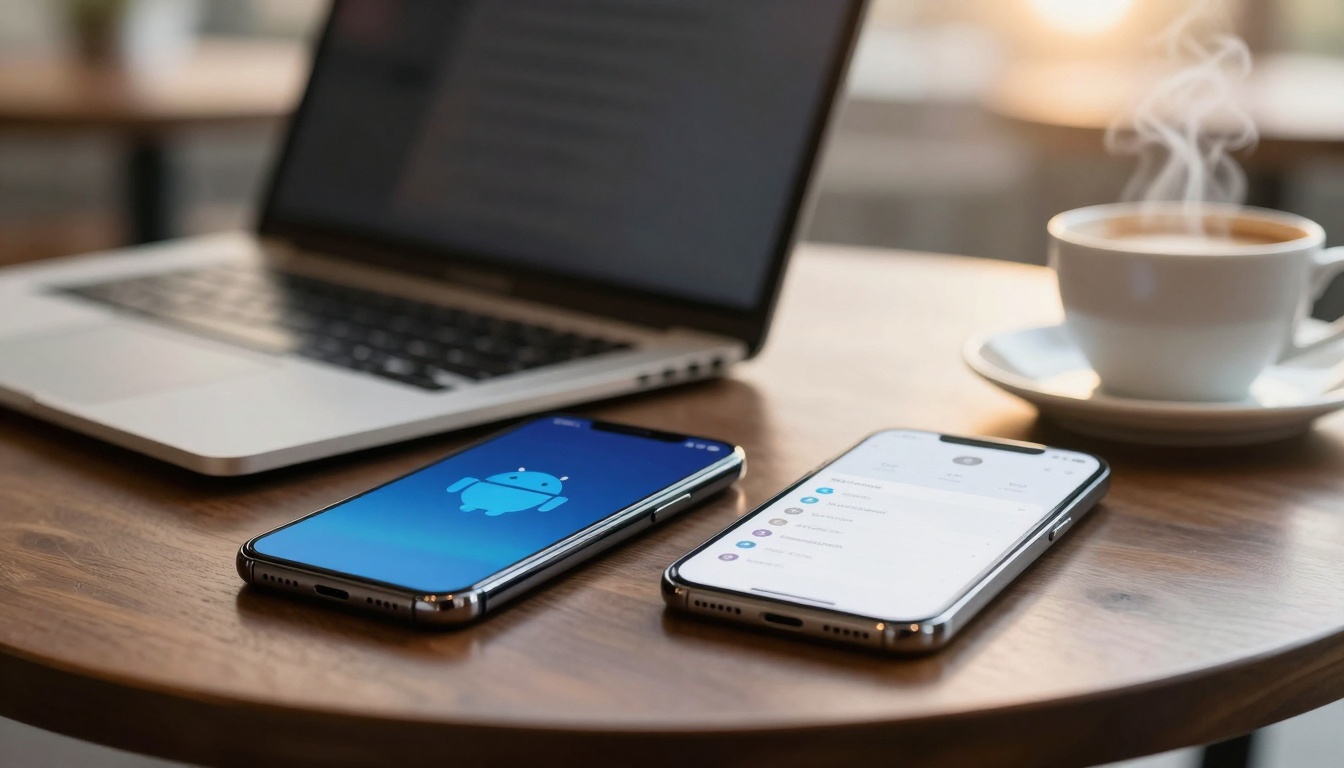
Both shine post-tweaks, but stats tilt iOS ahead. iPhones log fewer malware hits thanks to App Store vetting and uniform updates; only 4.6% lagged on iOS 26.2 in January 2026. Android varies by maker, so Samsung or Pixels fare best, but older devices lag patches.
| Feature | Android | iPhone |
|---|---|---|
| App Store Checks | Play Protect scans | Strict App Store review |
| Updates | Varies; auto helps | Uniform, fast |
| Encryption | Full-disk standard | FileVault-like |
Encryption matches on both. Habits count too: avoid public Wi-Fi sans VPN, use unique passcodes, skip sketchy links. iPhone wins ease out-of-box, but tuned Android rivals it. User surveys show 70% on both use weak passwords; fix that first.
Secure either, and risks drop sharp.
Lock In Your Phone’s Safety Today
Top Android moves: Theft Protection, Play Protect, auto-updates against Dolby flaws. For iPhone: Stolen Device, Safety Check, permission lockdowns, WebKit patches. Update now after January 2026 alerts, check weekly, add a VPN for Wi-Fi woes.
Picture yourself at the park, phone buzzing friends, not threats. You’ve built the walls. Tweak these today, then share your go-to tips in the comments. Safe scrolling awaits.